• Please see the most recent updates in the "Where did the .com name go?" thread. Posts number 16 and 17.

    Post 16 Update

    Post 17 Warning old domain name stealing credentials

  • Special Server Maintenance

    Just when you think you have everything running some what better...

    You get a message from the Hosting company. Short story they need to move us to a new server. I have been working with them to plan a good date for all concerned. Here is what we have come up with as a schedule.

    1. November 4th 17:00 -5UTC shut off the forums and start backup proceedures. During this time there will be no access to the forums or the Resource Section.
    2. November 5th Continue with Backups and download same until complete.
    3. November 6th 7:00 turn over server to hosting company to move system to new server
    4. November 7th - 8th restore backups and upgrade forum software.

    If all goes well we should be back online on November 8th.

    To keep you updated we will post updates on AVSIM forums.

    Thank you for your support.

desktop-icon?

italflyer

SOH-CM-2022
:dizzy:feeling bit of stupid right now. Just installed MSFS yesterday evening, let it update and activate via MS-store. Application started and did some first settings. Quit then, because it was to late (old man needs some sleep, right?).

Now I'm sitting in front of my PC and don't find neither an icon on my desktop, nor a entry in my start menu to run it again....:banghead:
 
Yeah, it didn't install a desktop icon for me either (maybe because they want us launching it from within the app we purchased it), but I was able to find it in my Start menu under "Recently Added" and right clicked it I believe selected the option to create a desktop shortcut.

In the search bar, you can also try typing "Microsoft Flight Simulator" and it should bring it up too, and you should be able to from there create a desktop shortcut for it.
 
I had the same issue.

My solution - for those slow on the uptake like me:encouragement:

Steps:

1) Open a Run Dialog in Win 10 = "WINKEY+R"
2) Type : "Shell:Appsfolder" in the box
3)Navigate to "Microsoft Flight Simulator" and Right Click
4)Select the option to: "Create Shortcut"
5)It will likely give you a message that it has to create a shortcut on the desktop - which is okay, as that is what you are trying to do in the first place!!:eagerness:

and ta da! you have a icon on your desktop.

now off to fly, (and crash) trying to master the flight model!

Bill
 
You can also open Xbox, and right click on the MSFS icon on the left. It will give a dropdown with the option to put a shortcut on the desktop. Of course this only works if purchased through the Microsoft Store.
 
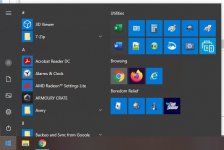
I don't keep shortcuts on my desktop. If you scroll down the apps list and right-click the icon, you'll get the option to pin it to either the start menu or task bar. I chose the first option and grouped it with three Win-7 games I installed under the banner of "Boredom Relief."
 

Attachments

  • Untitled.jpg
    Untitled.jpg
    59.4 KB · Views: 3
My solution for all app's that do this is to start the app and let it open. Right click on the icon on the task bar and select "pin to task bar" Your aall set.
 
This is from Bill Leeming over at AVSIM. It works like a charm. If you have a Steam install follow the link below to the post.

You simply need to create a new desktop shortcut containing the following command - it will launch the program without any of the videos:

cmd.exe /C start shell:AppsFolder\Microsoft.FlightSimulator_8wekyb3d8bbwe!App -FastLaunch


https://www.avsim.com/forums/topic/581234-fast-startup-for-msfs/
 
Back
Top