Hi Roger:
In
Instant Scenery version 2 (aka "
IS2") running within FSX:
1.) Right-click the ground in FSX (
context menu 1 opens)
2.) In IS2 context menu, select "
Extras" (
context menu 2 opens)
3.) In IS2 "
Extras" menu, select "
show objects from all BGLs..." (
'objects from all scenery files' dialog opens)
4.) In IS2 "
objects from all scenery files" dialog:
a.) Set
1 NM Radius
b.) Check "
Objects"
c.) Click "
Scan" button ('Scan' is completed; then 'pick list' option appears at bottom of dialog)
d.) In IS2
Objects from all scenery files dialog 'pick list', select "
Library and object name"
FS scenery object library BGL name and object name within each library should now appear on screen
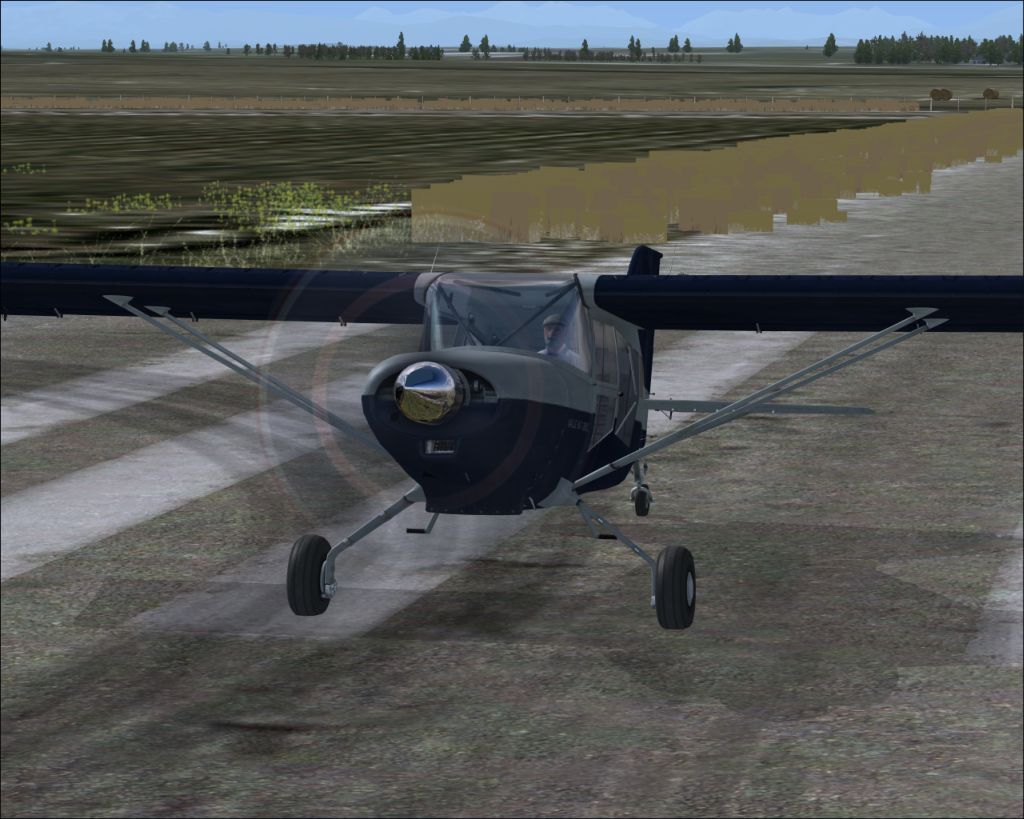
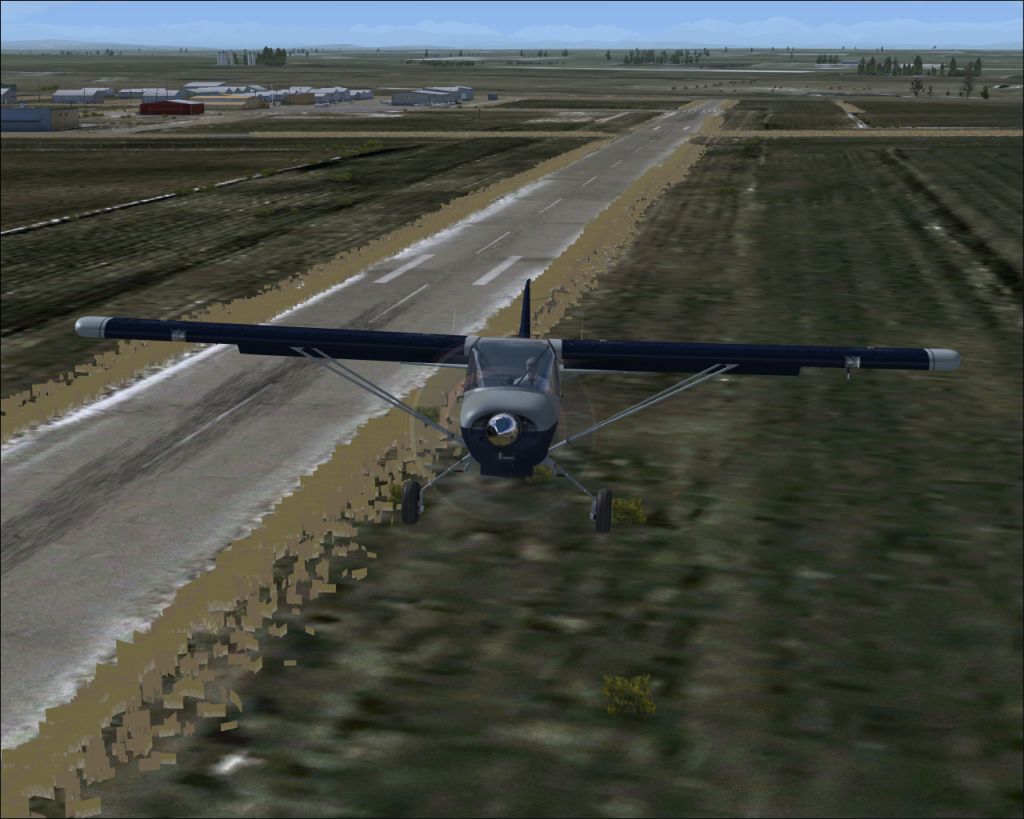
Examination of FSX DX10 mode "distorted" grass alongside CEN4 RWY reveals this label above the grass object placements in question:
L:ORBX_libs_bw_veg.BGL grass_line_long_wi
(
Translation):
FS scenery object library BGL name:
ORBX_libs_bw_veg.BGL
FS scenery object name within library:
grass_line_long_wi
Examination of [FSX install path]\Orbx folder chain in "Computer" (
aka "Windows Explorer") reveals FS scenery library BGL location:
[FSX install path]\ORBX\FTX_AU\FTXAA_ORBXLIBS\Scenery\ORBX_libs_bw_veg.BGL
Examination of ORBX_libs_bw_veg.BGL in Arno's "ModelConverterX":
1.) In
Menu > Options > Settings: configure all required paths to those used on
your system
2.) In Menu > Options >
Texture Settings > TextureSearchPath:
a.) Click
[...] folder browse button at far right (
"Texture search Path Editor" opens)
b.) In
Texture search Path Editor, click "
Add" button (
"Browse For Folder" opens)
c.) In
Browse For Folder dialog under "Computer", browse to /select / click "
OK" on:
[FSX install path]\ORBX\FTX_AU\FTXAA_ORBXLIBS\Texture folder
d.) Back in
Texture search Path Editor, click "
OK" button (
dialog closes)
e.) Back in
Options > Settings dialog, click
[X] button in window title bar (
dialog closes)
3.) Back in
main ModelConverterX GUI Menu, click "
Import" (
"Open" browse dialog opens)
a.) In "Open" browse dialog, set "
Files of type" to: "
FS BGL object (*.BGL)"
*
Browse to:
[FSX install path]\ORBX\FTX_AU\FTXAA_ORBXLIBS\Scenery folder
*
Select / click "Open" on:
[FSX install path]\ORBX\FTX_AU\FTXAA_ORBXLIBS\Scenery\ORBX_libs_bw_veg.BGL
4.) Back in main
ModelConverterX GUI,
ORBX_libs_bw_veg.BGL is rendered on screen at the library object 1 of 32 in that BGL file
a.) Use
Green " -->" arrow to advance through library until library object
6 of 32 is on screen (dialog title bar displays):
"
ModelConverterX - ORBX_libs_bw_veg.BGL - grass_line_long_wi"
b.) Hover cursor over
4th Icon to the right of the Green " -->" arrow, click "
Material Editor" (
"Material Editor" dialog opens)
c.) In Material Editor dialog, note
2 textures mapped to that "
grass_line_long_wi" scenery library object:
[FSX install path]\ORBX\FTX_AU\FTXAA_ORBXLIBS\Texture\grass_field_wi.dds
and...
[FSX install path]\ORBX\FTX_AU\FTXAA_ORBXLIBS\Texture\Orbx_VegRow1.dds
Examination of grass_field_wi.dds in [FSX SDK install path]\SDK\Environment Kit\Terrain SDK\ImageTool.exe:
*
grass_field_wi.dds shows... format:
DXT5 / Alpha:
unknown / # MIP levels:
7
Examination of Orbx_VegRow1.dds in [FSX SDK install path]\SDK\Environment Kit\Terrain SDK\ImageTool.exe:
*
Orbx_VegRow1.dds shows... format:
DXT5 / Alpha:
unknown / # MIP levels:
8
Perhaps some way that FSX DX10 rendering mode deals with the "
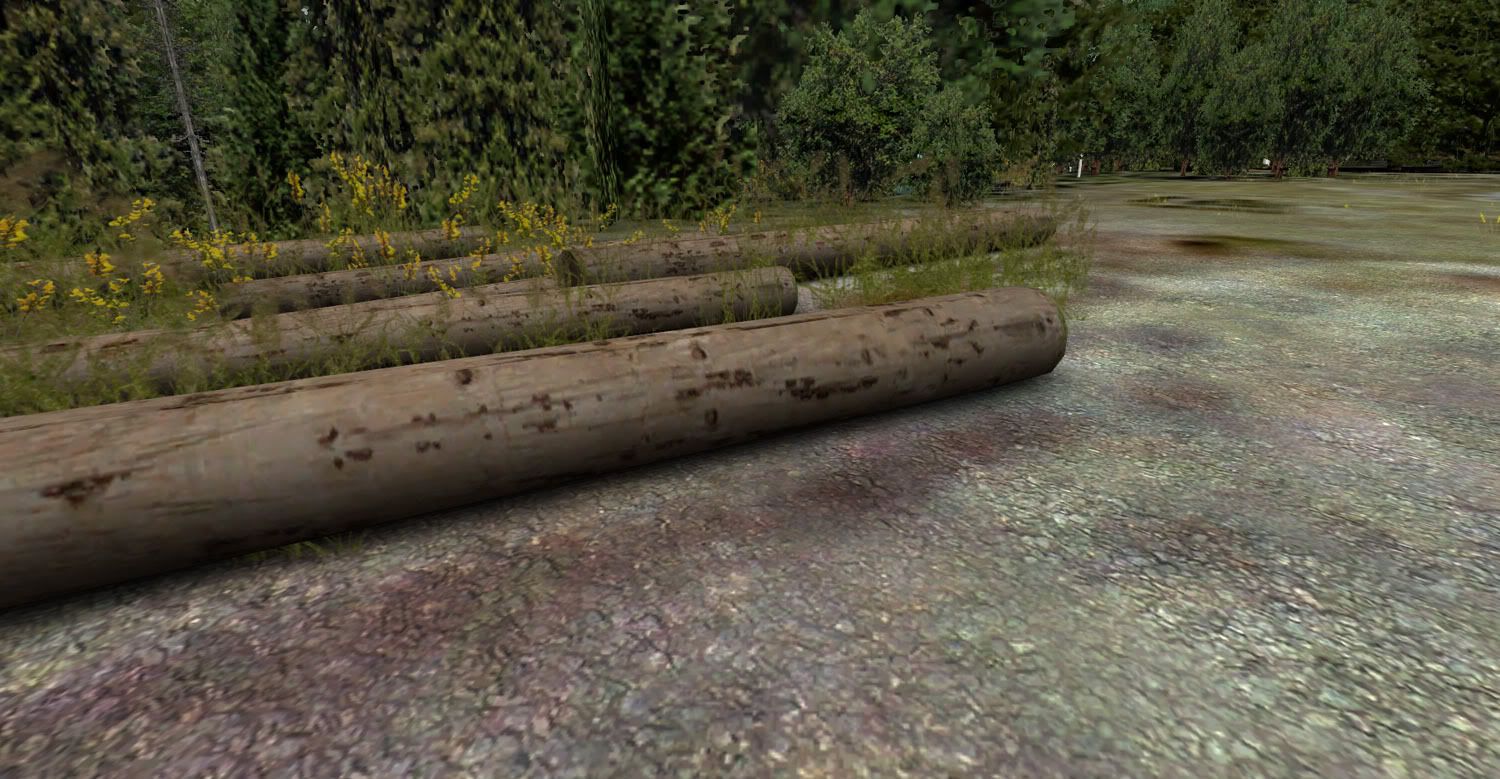
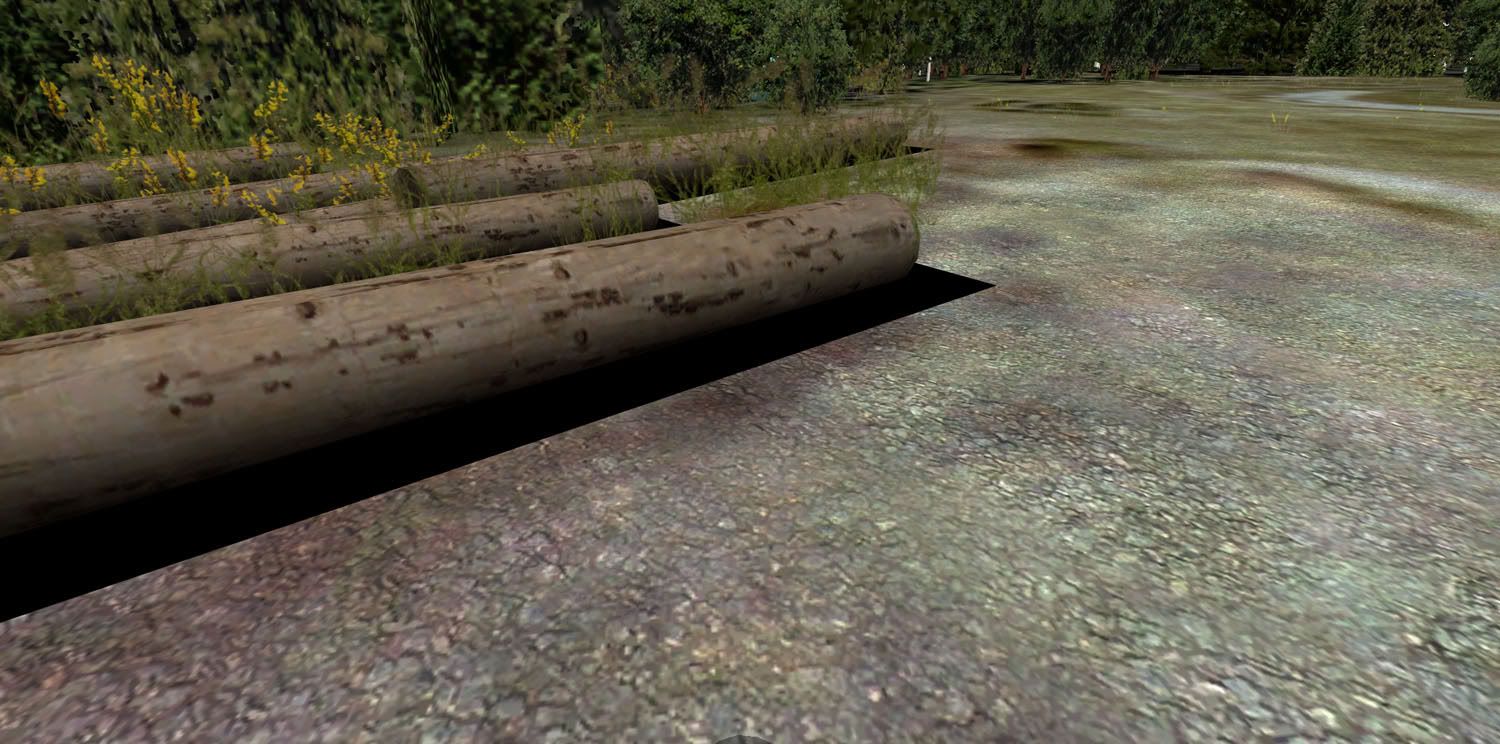
grass_line_long_wi" MDL file or either/both of its mapped textures may be the basis for how the grass appears at run time in FSX DX10 mode ?
NOTE: The OpenGL (aka "OGL") rendering engine used in Instant Scenery version 2 (aka "IS2") running within FSX DX10 mode
is able to properly display the "
grass_line_long_wi" on screen... when one picks that object from the "
ORBX_libs_bw_veg.BGL" library during an "object placement" procedure.
However, IIUC, the IS2 OGL engine works independently from the FSX rendering engine's Windows Direct3D graphics sub-system.
Examination of XML placement BGLs for the
OrbX freeware CEN4 package does
not find the GUID for the object in question !
 GUID
GUID (in FSX GUID numeric format):
{5155570b-f138-4b32-97e5-cdfe671b89e3}
That GUID is the one reported specifically for the
grass_line_long_wi object in ModelConverterX
This suggests that the grass scenery objects along the RWY in question may not have been placed (via a standard FS Scenery object XML placement BGL) by the freeware author in his CEN4 package, but instead were placed via "another" custom object or file elsewhere.
Examination of the OrbX FTX Northern Rocky Mountains (aka "NRM") CEN4 airport file:
[FSX install path]\ORBX\FTX_NA\FTX_NA_NRM05_SCENERY\Scenery\ADE_FTX_NRM_CEN4_High_River.BGL
...Also does
not find the GUID for the object in question !
Possibly the OrbX FTX NRM payware package (or the freeware CEN4 package) placed the grass as a custom "autogen" object ?

Or possibly "
grass_line_long_wi" is "
attached" to a placed custom scenery object with a
different GUID than shown by ModelConverterX ?
IIUC, probably so, since IS2 reports the "
placement" BGL file for
grass_line_long_wi as:
"ORBX_NRM_CEN4_vtm_PLC.bgl"
[EDITED]
Further analysis of coordinates at a placement RefPoint for
grass_line_long_wi at CEN4 suggests that the
actual GUID used for placement in
"ORBX_NRM_CEN4_vtm_PLC.bgl" is:
{971ed6ca-8195-4c80-995b-8dc9f502ea5a}
Perhaps with a bit more inquiry, the OrbX FTX BGL library containing the
actual MDL (with the GUID immediately above) to which
grass_line_long_wi may be "attached", and thereby "placed" at CEN4 ...might shed more light on a possible cause for why it renders distorted in FSX ?
[END_EDIT]
To verify the placement BGL file name, I did the following:
In
Instant Scenery version 2 (aka "
IS2") running within FSX:
1.) Right-click the ground in FSX (
context menu 1 opens)
2.) In IS2 context menu, select "
Extras" (
context menu 2 opens)
3.) In IS2 "
Extras" menu, select "
show objects from all BGLs..." (
'objects from all scenery files' dialog opens)
4.) In IS2 "
objects from all scenery files" dialog:
a.) Set
1 NM Radius
b.) Check "
Objects"
c.) Click "
Scan" button ('Scan' is completed; then 'pick list' option appears at bottom of dialog)
d.) In IS2
Objects from all scenery files dialog 'pick list', select "
Scenery File Name"
FS scenery object placement file (aka "Scenery File Name") for all displayed objects from each library should now appear on screen
As for the FSX DX10 mode rendering of the
ORBX_libs_bw_veg.BGL - grass_line_long_wi FS scenery object, perhaps this might be fixed via creation of a replacement texture file and/or DX10 shader modifications ? :iidea:
Hope this info may help (someone) to find a fix for this interesting freeware airport location ...in FSX DX10 "preview" mode. :mixedsmi:
GaryGB






 Shame it was some M$ bull....