Got a few minutes to explain..
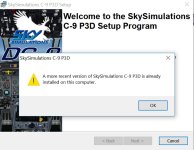
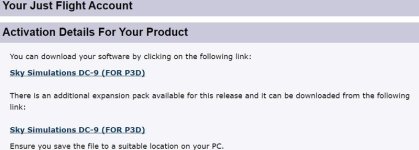
Ok. First thing is install the Expansion pack to the directory it defaults to in the installer. For me it was D:/P3DPath.... Make a copy of that directory and put it on your desktop!
Then install the main DC-9 pack. You will have to manually move the textures/models to the DC-9-30 in the Skysimulations install in P3D (leastwise I had to). Then all was there, including the C9 models.
As for the cargo door, there IS a cargo door, but the panel for it says something different. But it does work. NC
Yep, that's what I ultimately figured out, too. After that, I've zipped up the C-9 folders for future installations and stored the archive someplace safe so that I won't have to deal with that counterintuitive procedure again.
On a more positive note, once installed, you are free to move the DC-9s folders anywhere you like. So it's perfectly safe to make a backup that won't require use of the installers for recovery.
Here's a list of files:
Effects folder: fx_recog.fx and any file starting with "fx_SKY..." as well as "effects\texture\SKYLT.bmp"
"Manuals" folder: "Skysim... .pdf" documents
The "Sound\SKYDC9" folder.
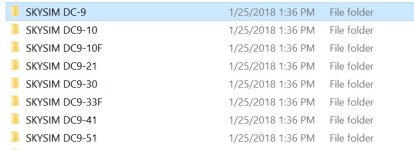
And the "SKYSIM DC..." folders (in SimObjects\Airplanes) containing the aircraft related files.
And not sure whether it's necessary for running the DC-9 or not, but your registration information is stored in the Windows Registry (run Regedit.exe) under "HKEY_LOCAL_MACHINE\SOFTWARE\WOW6432Node\SKYSIM" (if on 64bit Windows, otherwise I figure it's "HKEY_LOCAL_MACHINE\SOFTWARE\SKYSIM"). You can export the entire key and its subkeys by right clicking "SKYSIM" and "Export". Save it somewhere convienient as a .reg file. Inserting it again, if necessary, is as easy as double-clicking the .reg file.
And finally, you can move the "SKYSIM DC9-10" to "SKYSIM DC9-50" folders out of your P3D folder (or delete them) if you don't want them. Just don't touch the C-9's and "SKYSIM DC-9" folder.