
AW SPITFIRE VER 1.30
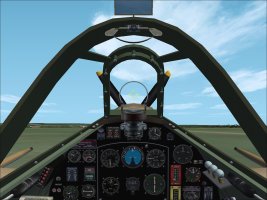
The aircraft is updated with new higher resolution gauges and steady non-blinking navigation lights. These gauges were designed by Alphasim, Mape, Aussie, or some unknown authors. I have made some modifications.
Installation steps:
1. Delete all the gauges with *_0001.gau, *_0002.gau, *_0003.gau, and *_0004.gau from the CFS\gauges folder. CFS2 will regenerate all these files when you restart the program.
2. Copy all the gauges from the GAUGES folder to the CFS2\GAUGES folder.
3. Copy the two prop_US.bmp and prop_usf.bmp files into every texture folders.
4. Copy the two files in the PANEL folder into every PANEL folders. This new panel.cfg contains all the new gauges.
5. Replace all the existing MDL files with the same named MDL file.
6. Add prop_anim_ratio=.920 to every aircraft.cfg files (see attached sample aircraft.cfg file).
OPTIONAL STEP:
I got tired of the black VC frames color, I changed it to olive green (see FUSELAGE.bmp file).
Have fun!
Andrew
The aircraft is updated with new higher resolution gauges and steady non-blinking navigation lights. These gauges were designed by Alphasim, Mape, Aussie, or some unknown authors. I have made some modifications.
Installation steps:
1. Delete all the gauges with *_0001.gau, *_0002.gau, *_0003.gau, and *_0004.gau from the CFS\gauges folder. CFS2 will regenerate all these files when you restart the program.
2. Copy all the gauges from the GAUGES folder to the CFS2\GAUGES folder.
3. Copy the two prop_US.bmp and prop_usf.bmp files into every texture folders.
4. Copy the two files in the PANEL folder into every PANEL folders. This new panel.cfg contains all the new gauges.
5. Replace all the existing MDL files with the same named MDL file.
6. Add prop_anim_ratio=.920 to every aircraft.cfg files (see attached sample aircraft.cfg file).
OPTIONAL STEP:
I got tired of the black VC frames color, I changed it to olive green (see FUSELAGE.bmp file).
Have fun!
Andrew