Reply...
Marty,
In your installation, there is a file called CFS2.gsl in your GSL folder. What you would need to do is...
1) Take the GSLman.exe file and place it in your CFS2 installation's GSL folder.
2) Make a backup copy of your cfs2.gsl file, just in case. (add a .bak extension, or change the file name)
3) Before proceeding with the next steps, make sure that your not actually running the sim at the time you do this, otherwise the file is write-protected and won't save.
4) Take the .gsl files that Dombral has included (Bonn.gsl, Brest.gsl, etc.) and make sure these files are in the GSL folder.
5) Open the GSLman.exe program.
6) Under available custom gobs it should list the .gsl files from the downloaded package you just included in the folder.
7) Click on and highlight the first GSL file so that it turns blue.
8) Click "add," and repeat the process until all of the new .gsl files, or "gobs" have been added to your installation's GSL file. You should notice the the file size of this at the end is larger than it was when you began. That's how you know the additional scenery has been added.
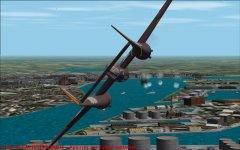
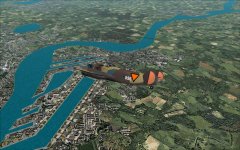
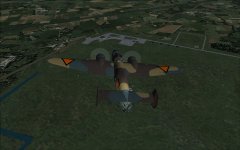
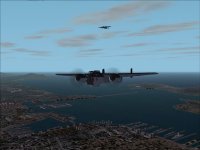
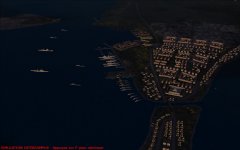
You should now be able to see the new scenery at the corresponding locations. No airfields have been included in this, so if you don't have airfields in the area, you would have to rely on geographic coordinates.
Your question is valid, however. No readme was included in this, so you will likely get a ton of error messages over missing objects, which you can list and we can help you locate. Hopefully, Dombral can provide a list of the object packages and scenery required to make the ports appear correctly, but I will leave that up to him, or perhaps others to correct.