
• Please see the most recent updates in the "Where did the .com name go?" thread. Posts number 16 and 17.

    Post 16 Update

    Post 17 Warning old domain name stealing credentials

  • Special Server Maintenance

    Just when you think you have everything running some what better...

    You get a message from the Hosting company. Short story they need to move us to a new server. I have been working with them to plan a good date for all concerned. Here is what we have come up with as a schedule.

    1. November 4th 17:00 -5UTC shut off the forums and start backup proceedures. During this time there will be no access to the forums or the Resource Section.
    2. November 5th Continue with Backups and download same until complete.
    3. November 6th 7:00 turn over server to hosting company to move system to new server
    4. November 7th - 8th restore backups and upgrade forum software.

    If all goes well we should be back online on November 8th.

    To keep you updated we will post updates on AVSIM forums.

    Thank you for your support.

inner flaps texture for mz-spitfire5.zip

Pierre_NC

Members +
Hello all,

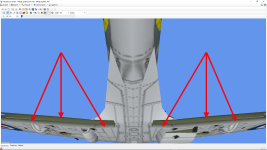
I've set my choice on the mz-spitfire5.zip from Hagochu (Akemi Mizoguchi) mz_hago. A perfect plane that flies wonderfully, quite pleasant to paint, no texture distorsions at all, a real beauty from an awesome designer.

The only question I have though is about the location of the wings inner flaps (above and below) textures on the bitmaps (see the picture below). I was not able to find them and I would like to give them both another color, possibly with panel lines and rivets.

If anyone knows where they are, could you kindly point them to me, please ?

Thank you so much for your kind help and cooperation.

Pierre_NC.
 

Attachments

  • mz-spitfire5.png
    mz-spitfire5.png
    444.4 KB · Views: 108
To fin the texture file, change the view mode in MCX to wireframe and open the materials editor (and check the box to highlight the selected texture on the model) and it will show you which one the part is on.

It's a little more difficult to find out where it is on the sheet itself.

One way is to use MCX to export the model in .dae format and then import it into Blender. Once it's open in Blender, you can look at the part with Blender in UV Editor mode. This will show you the UV map, which you can export if you want.

Another way to find the location is to use FSRepaint by Abacus (it's payware but not expensive) and make test edits to the texture sheet until you find the correct spot on the model.
 
To fin the texture file, change the view mode in MCX to wireframe and open the materials editor (and check the box to highlight the selected texture on the model) and it will show you which one the part is on

This will help me a lot, awstub. Thank you very much for answering me so quickly.
 
Back
Top