Hello,
Today, I’m going to show you a Blender modeller’s trick to fix certain Blender behaviors that aren’t appreciated by exporting to MSFS.
In Blender when you create a material, if you look via the "SHADING tab" (
in the top menu of Blender view) at the structure of the nodes that make up this material, you have a box whose name is gLTF Settings.
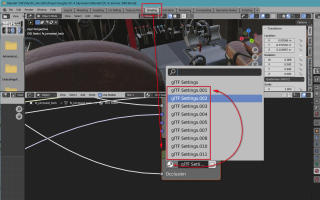
In fact, when you duplicate an object with a material assigned to that object,
Blender normally duplicates this node and renames it "gLTF Settings.001" and so on. This behavior is completely normal for Blender, but when exporting to MSFS, it causes problems and some
COMP textures are not processed. In the end, the texture file COMP_PNG.DDS is very often missing.
There is no easy way to find the objects that have this problem except going into the node tree after copying an object and via the drop-down list in this node changing each gLTF Settings.00x to gLTF Settings.
If we don’t pay attention, we can end up with a multitude of nodes of this type and consequently not have a COMP.PNG.DDS file during a compilation for all these objects.
Nevertheless, I have developed a trick to solve this (
I insist:
the best way to do it is to rename the node with each copy) when you are pressed by modeling when you don’t pay attention to it. This trick requires using the scripting tab and manually entering a few lines of python:
Code:
import bpy

target_name = "glTF Settings.001"
matches = []
for obj in bpy.data.objects:
    for slot in obj.material_slots:
        mat = slot.material
        if not mat or not mat.use_nodes or not mat.node_tree:
            continue
        for node in mat.node_tree.nodes:
            if node.type == "GROUP" and node.node_tree:
                if node.node_tree.name == target_name:
                    matches.append((obj, mat))
                    break  # Avoid reporting the same object twice for this material

# Print results in the System Console
for obj, mat in matches:
    print(f"Object: {obj.name} | Material: {mat.name}")

print(f"\nFound {len(matches)} object/material match(es).")
Then you have to run this script via the
RUN button you can then in the console window of Blender read the objects that can be the source of these problems.
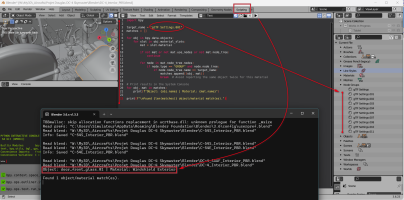
Then you need to click on each of these listed objects and then via the Shading tab to check if they are compliant or correct.
By modifying the gLTF Settings.001 target name in the script for each item encountered (.001, .002, .003, ..., .0010, .0011, etc.), we can clean up your Bllender file of these "slags" and obtain that each object in your Blender file is associated to a
simply node group "gLTF Settings"
without any suffix. Then you have an export that will allow us to compile all the texture files correctly.
You can find several days on Internet: this trick isn't documented but I can certified that it really function